Extend PaperQuire

Build plugins in minutes.

Drop a folder with a manifest and a JavaScript file. Register hooks for Markdown rendering, editor extensions, slash commands, export processing, and more.

How plugins work

PaperQuire uses a folder-based discovery system. Plugins run in the renderer process with a sandboxed API.

1

Discovery

PaperQuire scans plugins/ inside your data folder for subfolders containing a manifest.json.

2

Loading

The main.js entry point is evaluated in a safe module context. Your activate() function receives the plugin API.

3

Registration

Call methods like registerMarkdownPlugin() or registerSlashCommand() to hook into the app.

Plugin directory location

macOS ~/Library/Application Support/paperquire/plugins/
Linux ~/.config/paperquire/plugins/
Windows %APPDATA%\paperquire\plugins\

Quickstart

Create a working plugin in three files. No build tools needed.

1 Create the folder

Open the plugins directory (Settings → Plugins → Open plugins folder) and create a subfolder.

plugins/
  my-plugin/
    manifest.json
    main.js
2 Write the manifest

Declare your plugin's identity and which hooks it uses.

{
  "id": "my-plugin",
  "name": "My Plugin",
  "version": "1.0.0",
  "description": "Does something cool.",
  "author": "Your Name",
  "minAppVersion": "1.0.0",
  "main": "main.js",
  "permissions": [],
  "hooks": ["commands", "markdown"]
}
3 Write the plugin

Export activate and deactivate. Use the context object to register your hooks.

module.exports = {
  activate(ctx) {
    // Add a slash command
    ctx.registerSlashCommand({
      label: '/greet',
      detail: 'Insert a greeting',
      apply: 'Hello from my plugin!\n'
    });

    // Add a command palette entry
    ctx.registerPaletteCommand({
      id: 'say-hello',
      title: 'Say Hello',
      group: 'My Plugin',
      run() {
        alert('Hello!');
      }
    });
  },

  deactivate() {
    // Clean up if needed
  }
};

Reload the plugin from Settings → Plugins → Reload to see changes instantly.

Manifest reference

Every plugin needs a manifest.json in its root folder.

FieldTypeRequiredDescription
idstringYesUnique identifier. Lowercase alphanumeric + hyphens only (/^[a-z0-9-]+$/).
namestringYesDisplay name shown in Settings.
versionstringYesSemver version string.
descriptionstringYesShort description of what the plugin does.
authorstringYesAuthor name or organization.
minAppVersionstringYesMinimum PaperQuire version required.
mainstringNoEntry point filename. Defaults to main.js.
stylestringNoOptional CSS file injected into the app (not just preview). Use registerPreviewCSS() for preview-only styles.
permissionsstring[]NoFuture: declare capabilities like network, clipboard, notifications.
hooksstring[]NoWhich systems the plugin uses: commands, markdown, editor, export, preview, settings.

API reference

The PluginContext object passed to your activate() function provides all these methods.

markdown Markdown rendering

registerMarkdownPlugin(fn)

Register a markdown-it plugin function. The Markdown pipeline is rebuilt to include it. Your function receives the md instance and can add custom rules, renderers, or token transformations.

ctx.registerMarkdownPlugin(function(md) {
  md.core.ruler.push('my_rule', function(state) {
    // Transform tokens here
  });
});

editor Editor extensions

registerEditorExtension(ext)

Register one or more CodeMirror 6 extensions. These are applied to the editor instance — decorations, key bindings, themes, syntax highlighting, and more.

ctx.registerEditorExtension(
  EditorView.theme({ '.cm-content': { fontSize: '16px' } })
);

commands Slash commands & command palette

registerSlashCommand({ label, detail, apply })

Add a command to the / autocomplete menu in the editor. When selected, apply text is inserted at the cursor.

ctx.registerSlashCommand({
  label: '/today',
  detail: 'Insert today\'s date',
  apply: new Date().toISOString().split('T')[0] + '\n'
});
registerPaletteCommand({ id, title, group, hint?, run })

Add an entry to the command palette (Cmd+K). The run function executes when selected. Commands are automatically namespaced by your plugin ID.

ctx.registerPaletteCommand({
  id: 'do-thing',
  title: 'Do The Thing',
  group: 'My Plugin',
  run() { /* your action */ }
});

export Export processing

registerExportPreProcessor(fn)

Transform the body HTML before it is assembled into the export template. Receives an HTML string, returns a transformed HTML string (sync or async).

registerExportPostProcessor(fn)

Transform the final HTML after template assembly — the last step before PDF/DOCX rendering. All plugins' processors are chained in load order.

ctx.registerExportPostProcessor(function(html) {
  return html.replace(/DRAFT/g, '<mark>DRAFT</mark>');
});

preview Preview styling

registerPreviewCSS(css)

Inject CSS into the preview pane only. Use CSS custom properties like var(--bg-muted) for theme-aware styling. This is the recommended way to style custom rendered elements.

ctx.registerPreviewCSS(`
  .my-card {
    padding: 16px;
    border-radius: 8px;
    background: var(--bg-muted, #f0f4f8);
    border: 1px solid var(--border, #ddd);
  }
`);

settings Configuration

getConfig<T>() / setConfig(value)

Read and write plugin-scoped configuration. Data is persisted across sessions in PaperQuire's settings file. Store any JSON-serializable value.

// Save user preferences
ctx.setConfig({ fontSize: 16, showLineNumbers: true });

// Read them back
const config = ctx.getConfig();
if (config) console.log(config.fontSize); // 16

Plugin lifecycle

Understanding when your plugin is loaded, unloaded, and how to handle cleanup.

activate(ctx)

Called when the plugin is enabled or the app starts. This is where you register all your hooks. The ctx object is your only interface to PaperQuire's internals.

deactivate()

Called when the plugin is disabled or the app shuts down. Optional. Use it to clean up side effects like timers, event listeners, or DOM mutations outside the plugin API.

Hot reload

Click Reload in Settings → Plugins to unload and re-load your plugin without restarting the app. The manifest is re-read from disk, so you can update metadata too.

Module format

Plugins use CommonJS (module.exports). The entry point is evaluated in a sandboxed context — no access to Node.js APIs, require(), or the filesystem. Only the PluginContext API is available.

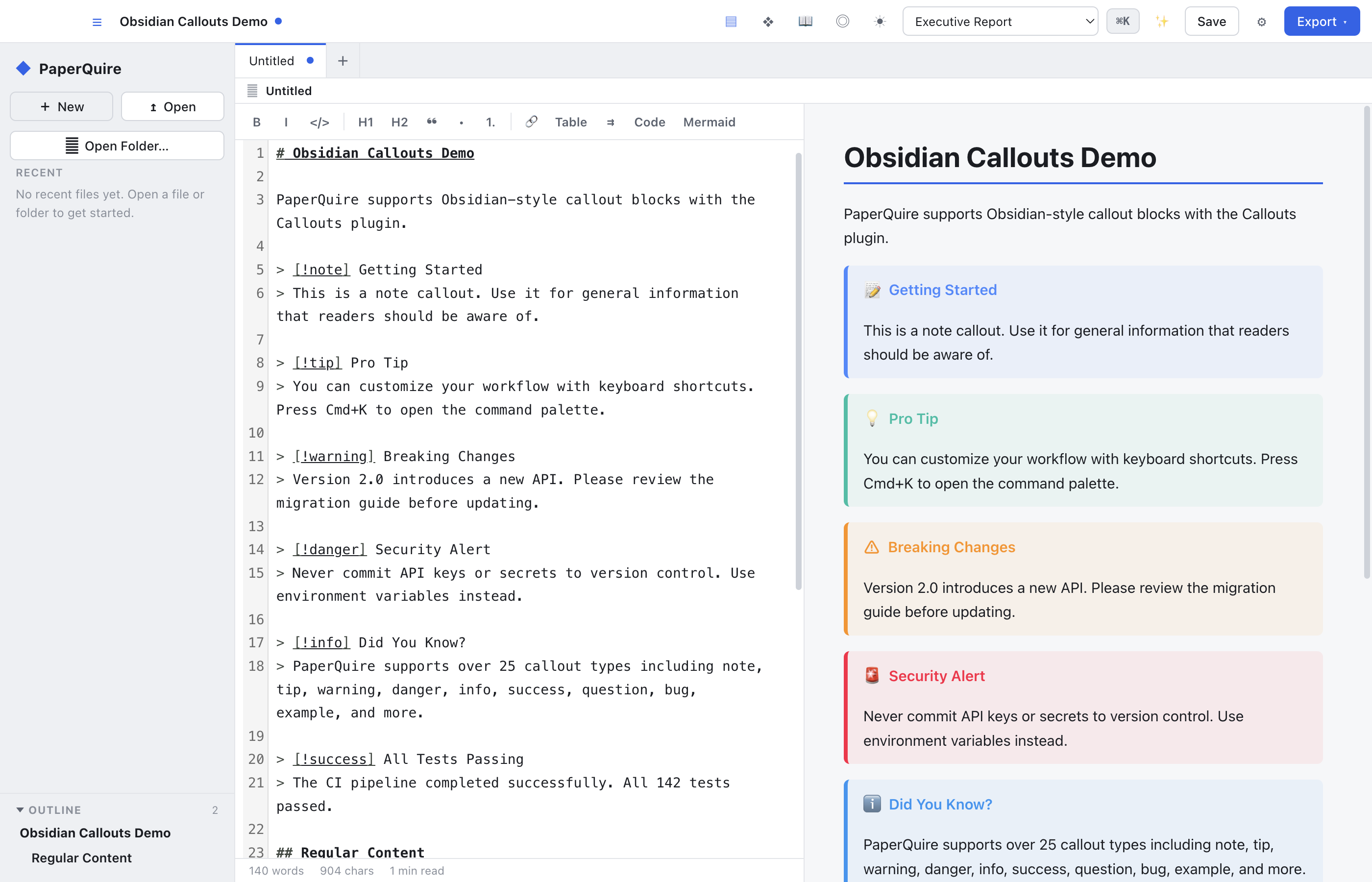
Example: Obsidian Callouts

A real-world walkthrough of how the Obsidian Callouts plugin transforms > [!note] blocks into styled cards.

Input (Markdown)
> [!warning] Breaking Changes
> Version 2.0 introduces a new API.
> Please review the migration guide.
What the plugin does
  1. Registers a markdown-it core rule that runs after block parsing
  2. Finds blockquote_open tokens whose first inline content matches /^\[!(\w+)\]/
  3. Extracts the callout type (warning) and optional title (Breaking Changes)
  4. Replaces the blockquote tokens with a styled <div class="pq-callout"> HTML block
  5. Registers preview CSS with colored left borders, icons, and tinted backgrounds
  6. Adds slash commands (/callout-note, /callout-tip, etc.) for quick insertion
Output (rendered)
⚠️ Breaking Changes
Version 2.0 introduces a new API. Please review the migration guide.

Best practices

Use registerPreviewCSS() instead of style.css

The style field in the manifest injects CSS into the entire app UI. For most plugins, you only want to style the preview pane. Use registerPreviewCSS() to keep your styles scoped and avoid conflicts.

Escape user content in custom HTML

When generating HTML blocks from Markdown content, always use md.utils.escapeHtml() to prevent XSS. Never insert raw user text into your HTML strings.

Keep plugins stateless when possible

Since plugins can be hot-reloaded at any time, avoid storing state outside the plugin API. Use getConfig() / setConfig() for persistent state.

Use CSS custom properties for theming

PaperQuire exposes variables like --bg-muted, --text, --border, and --accent in the preview. Use them so your plugin looks correct in both light and dark themes.

Test with the Reload button

During development, use Settings → Plugins → Reload to iterate quickly. No need to restart the app. The manifest is re-read from disk on each reload.

Follow the ID naming convention

Plugin IDs must be lowercase with hyphens only: my-cool-plugin. The folder name should match the ID. Invalid characters are stripped during validation.

Ready to build?

Check out the sample plugins in the repository, or create your own from scratch.

Download PaperQuire