Settings
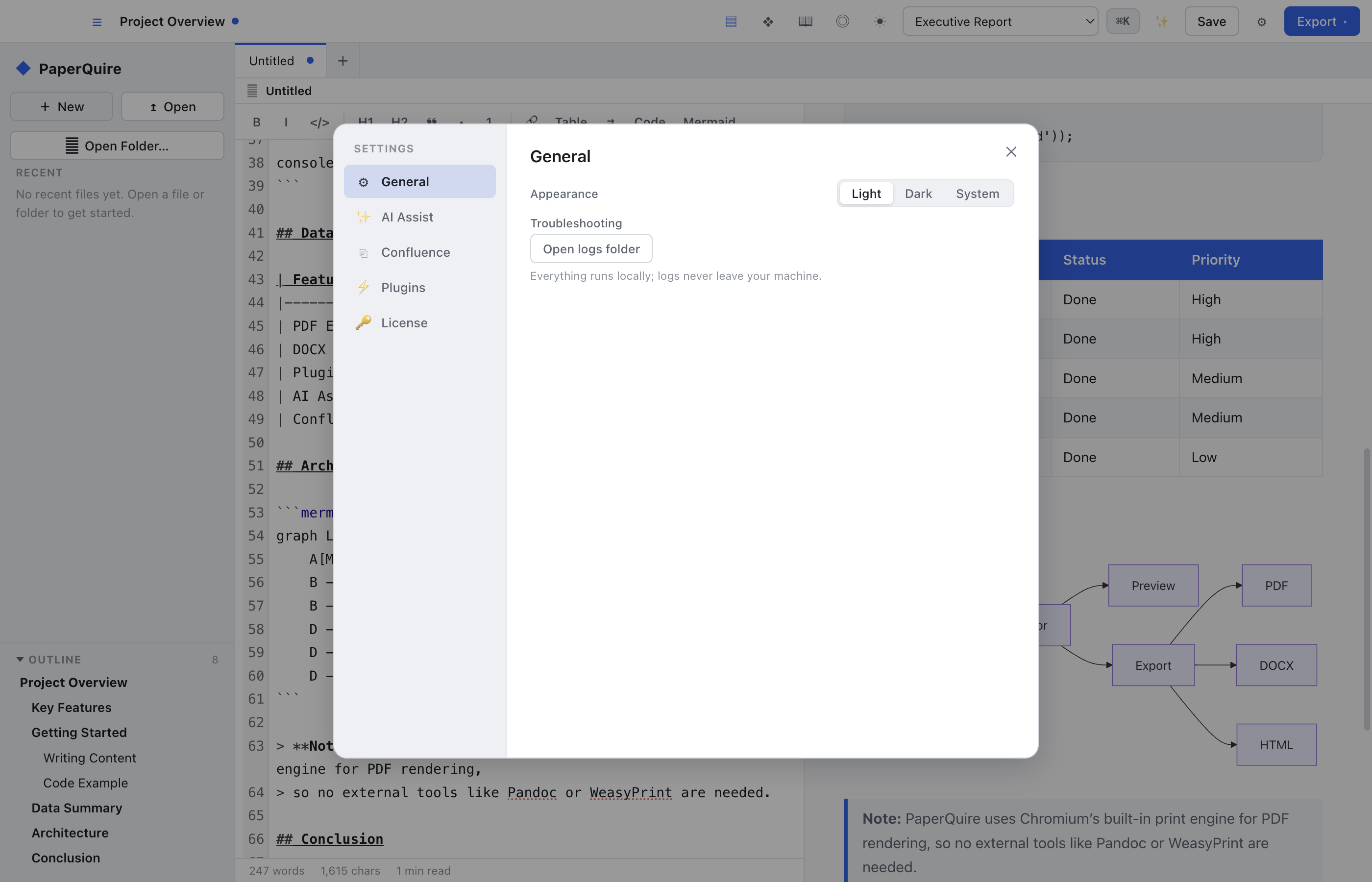
Opening Settings
Open the Settings panel in any of these ways:
- Menu bar: File → Settings
- Keyboard shortcut: Cmd + , (macOS) or Ctrl + , (Windows/Linux)
- Command Palette: type Settings and select the entry
Settings are organized into tabs along the left side of the panel. Changes take effect immediately — there is no save button.
General
- App language — choose your preferred display language.
- Auto-save interval — how often unsaved changes are written to disk (default: 30 seconds). Set to Off to disable.
- Default document directory — the folder that PaperQuire opens when you create or open a document.
- Startup behavior — choose what happens when PaperQuire launches:
- Open last document — re-opens the document you were editing when you quit.
- Blank document — starts with an empty editor.
- Template chooser — shows the template gallery so you can pick a starting point.
- Spelling check — toggle real-time spell checking on or off.
- Auto-update — when enabled, PaperQuire checks for new versions on startup and notifies you when an update is available.
Appearance
- Theme — choose Dark, Light, or System (follows your OS setting).
- Editor font family — the monospace font used in the editor pane (e.g., JetBrains Mono, Fira Code, Menlo).
- Editor font size — size in pixels (default: 14).
- Line height — spacing between lines (default: 1.6).
- Show line numbers — display line numbers in the editor gutter.
- Show minimap — display a zoomed-out overview of the document on the right edge of the editor.
- Cursor style — choose between Line (thin blinking cursor) and Block (full-character highlight).
Editor
- Tab size — number of spaces per indent level (default: 4).
- Insert spaces vs tabs — when enabled, pressing Tab inserts spaces instead of a tab character.
- Word wrap — wrap long lines to fit the editor width, or allow horizontal scrolling.
- Scroll sync with preview — keep the editor and preview panes scrolled to the same position.
- Auto-close brackets — automatically insert closing brackets, parentheses, and quotes.
- Auto-close Markdown syntax — automatically insert closing markers for bold (
**) and italic (*) when you type the opening marker. - Vim mode — enable Vim-style modal editing keybindings.
- Typewriter scrolling — keep the active line centered vertically in the editor as you type.
Export
- Default export format — the format pre-selected when you open the export dialog (PDF, DOCX, or HTML).
- Output directory — where exported files are saved by default.
- Filename pattern — customizable pattern for exported filenames. Supported variables:
{title}— the document title{date}— today's date in YYYY-MM-DD format{author}— the author from the document's front-matter
{title}-{date}producesMy-Document-2026-06-22.pdf. - Open file after export — automatically open the exported file in your default viewer.
- PDF compression level — balance file size against image quality (Low, Medium, High).
- PDF/A compliance mode — generate archival-quality PDFs that conform to the PDF/A standard for long-term preservation.
AI Pro
- Provider selection — choose your AI backend (OpenAI, Anthropic, or local model).
- API key management — securely store and manage your API keys. Keys are stored in your system keychain.
- Default model — the model used for AI operations (e.g., GPT-4o, Claude Sonnet).
- Temperature — controls creativity vs. precision of AI responses (0.0–1.0).
- Custom actions list — define reusable prompts that appear in the AI Assist menu.
See AI Assist for a full guide to the AI features.
Plugins
- Manage installed plugins — view all plugins, their version, and description.
- Toggle on/off — enable or disable individual plugins without uninstalling.
- Check for updates — fetch the latest versions from the plugin registry.
- Per-plugin settings — each plugin may expose its own configuration options, shown inline when selected.
See Plugins for more information on finding, installing, and developing plugins.
Confluence Pro
- Confluence URL — the base URL of your Confluence instance (e.g.,
https://yourcompany.atlassian.net). - Credentials — your Confluence email and API token.
- Default space — the Confluence space used when no space is specified during publishing.
- Default parent page — the page under which new documents are created by default.
See Confluence for a complete guide to publishing.
License Enterprise
- License status — view your current tier (Free, Pro, or Enterprise), activation status, and expiry date.
- Activate / Deactivate — paste a license key to activate, or deactivate to move the license to another machine.
- Organization management — Enterprise admins can view active seats, enforce export policies, and configure SSO (SAML, OIDC).
- Custom branding — Enterprise only. Set your organization's logo, colors, and default templates that apply to all users.
See Licensing for full details on tiers, activation, and enterprise features.