Plugins
Overview
Extend PaperQuire with plugins. Plugins can add new export formats, editor features, syntax extensions, themes, and integrations.
Installing Plugins
Open Settings → Plugins. Browse the plugin directory, search by name or category, and click Install. Plugins are downloaded and activated immediately. Restart is not required for most plugins.
Managing Plugins
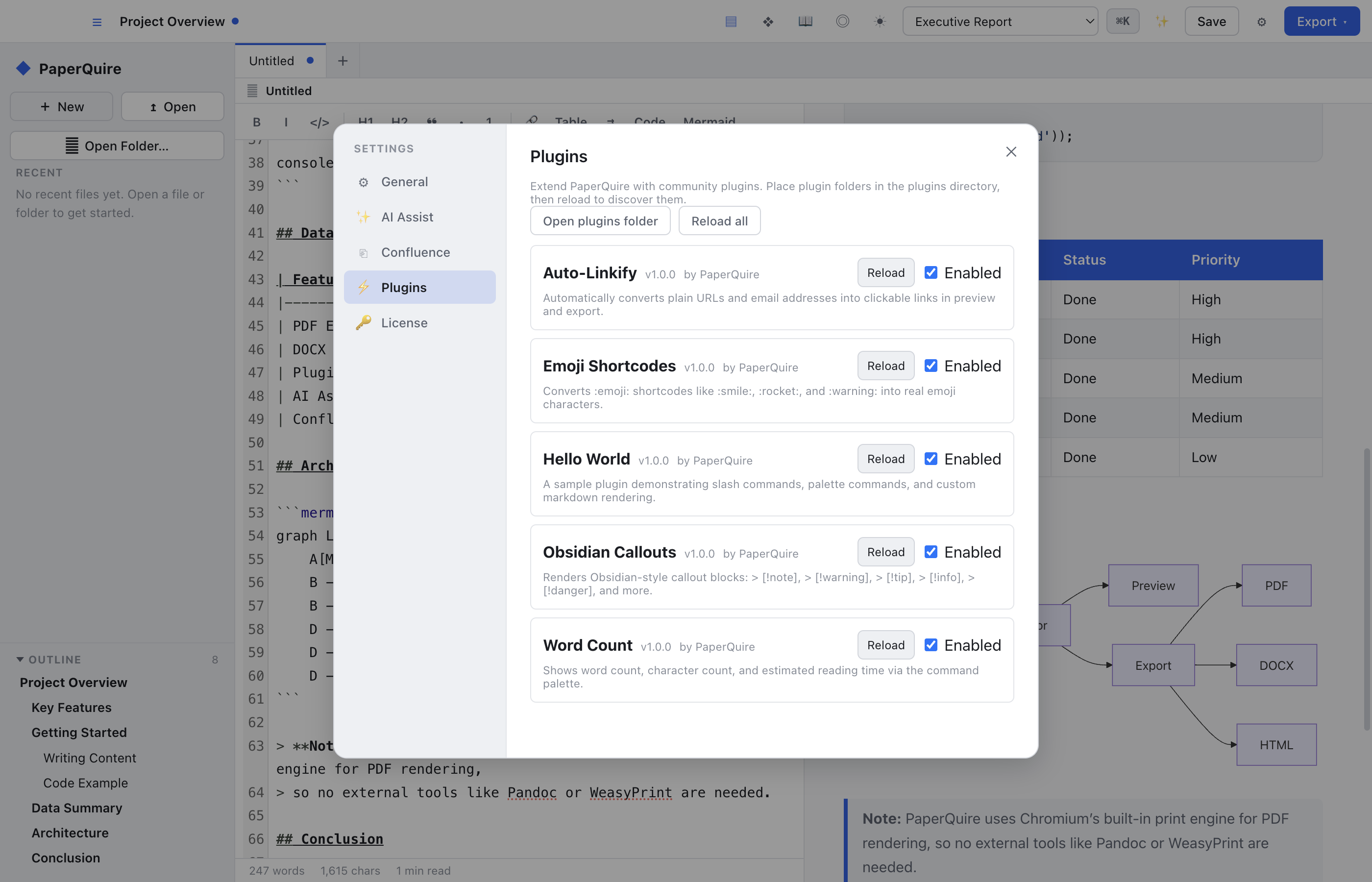
Toggle plugins on/off, check for updates, configure plugin-specific settings, or uninstall. Disabled plugins are kept but not loaded. Each plugin shows its version, author, and description.
Built-in Plugins
PaperQuire ships with several plugins enabled by default:
- Word Count — Displays word count, character count, and reading time in the status bar.
- Emoji Shortcodes — Converts
:shortcode:text to emoji characters as you type. - Auto-Linkify — Automatically converts URLs and email addresses into clickable links.
- Mermaid Diagrams — Renders
```mermaidcode blocks as SVG diagrams in the preview and exports. - Table of Contents — Generates a navigable table of contents from your headings.
- Obsidian Callouts — Renders
> [!type]callout blocks with styled icons and colors.
These can be configured or disabled like any other plugin.
Plugin API
Developers can create plugins using the PaperQuire Plugin API. Plugins are JavaScript modules that export a standard interface. Key APIs:
- Editor hooks —
beforeSave,afterLoad,onContentChange - Preview renderers — custom rendering for specialized content blocks
- Export processors — add or modify export formats
- Settings UI registration — add configuration panels for your plugin
- Command palette commands — register actions users can invoke from the palette
See the Plugin showcase & API reference for full documentation and examples.
Plugin Security
Plugins run in a sandboxed environment with limited file system and network access. Plugins cannot read other documents or access your AI keys without explicit permission. Review plugin permissions before installing third-party plugins.