Getting Started
This guide walks you through installing PaperQuire, writing your first document, and exporting it as a polished PDF. The whole process takes about two minutes.
Installation
Download PaperQuire from the downloads page for your platform:
- macOS — Open the
.dmgand drag PaperQuire to your Applications folder, or install via Homebrew:brew install --cask paperquire/paperquire/paperquire - Windows — Run the installer (
.exe) or use the portable.zipif you prefer no installation. - Linux — Available as
.AppImage,.deb, and.rpm.
PaperQuire is fully offline and local-first. Your documents never leave your machine, and no account or internet connection is required. Launch the app and you are ready to write.
Creating Your First Document
When you open PaperQuire, you start with a blank editor split into two panes: a Markdown editor on the left and a live preview on the right. Start typing and you will see the formatted output update in real time.
Try a few basics to get oriented:
# Project Plan

## Objectives

- Define scope and timeline
- Identify key stakeholders

> This is a blockquote for callouts or notes.
Slash commands
Type / anywhere in the editor to open the quick-formatting menu. From there you can insert headings, tables, code blocks, images, and more without memorizing Markdown syntax. Use the arrow keys to navigate the list and press Enter to insert.
Choosing a Template
Templates control the visual style of your exported document — fonts, colors, page layout, headers, and footers.
- Open Document Setup by clicking the gear icon in the toolbar, or press Cmd+, (macOS) / Ctrl+, (Windows/Linux).
- Go to the Template tab.
- Browse the built-in templates: Report, Proposal, Meeting Notes, Technical Spec, and others.
- Click a template to preview it, then click Apply.
Each template is fully customizable. You can adjust colors, fonts, margins, and header/footer content in the template settings. See Templates for a full reference.
Your First Export
Once your document looks good in the preview, export it:
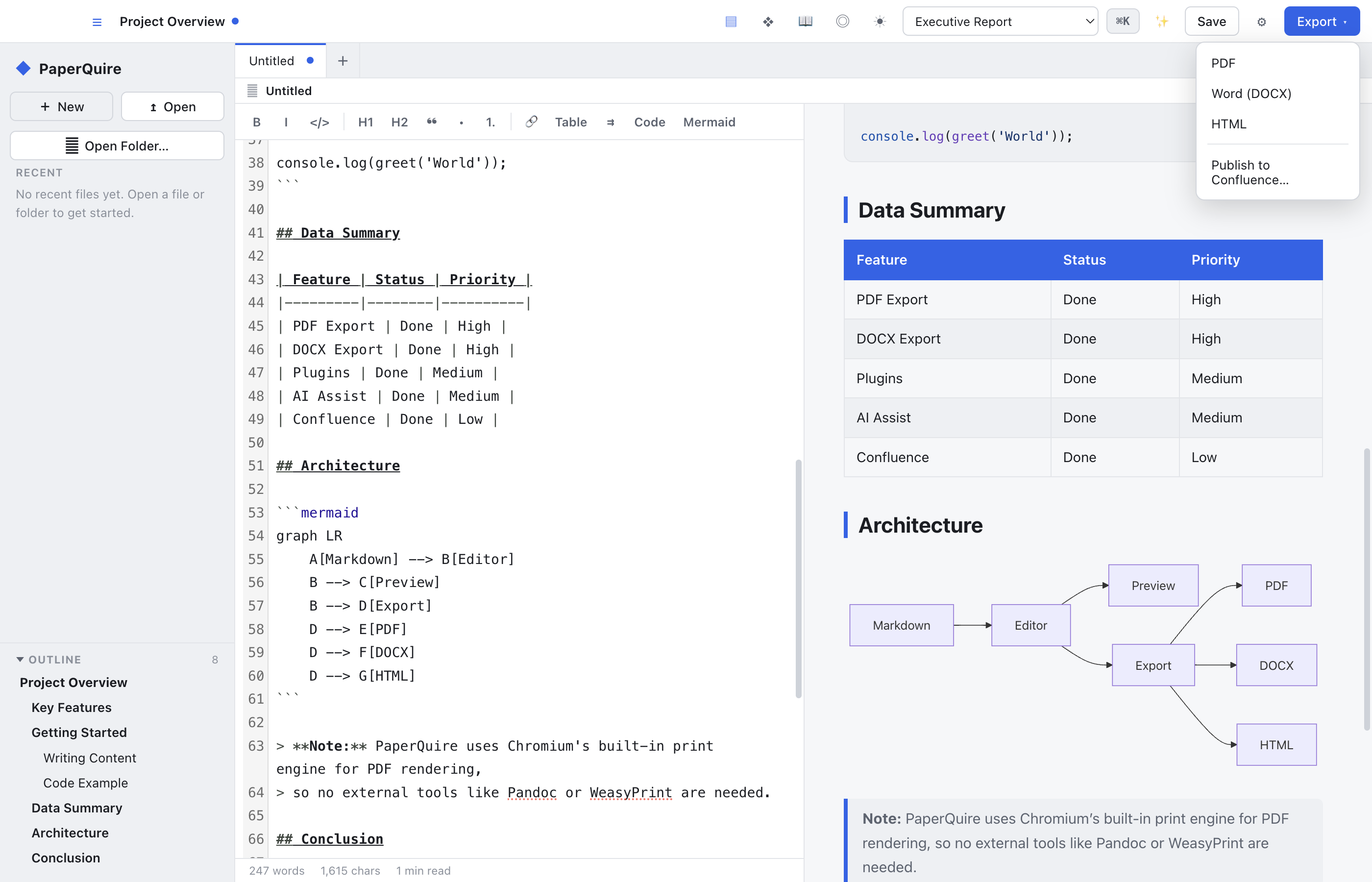
- Click the Export button in the toolbar, or press Cmd+E (macOS) / Ctrl+E (Windows/Linux).
- Choose your format: PDF (free), DOCX, or HTML (DOCX and HTML require Pro).
- Pick a save location and click Save.
The PDF is generated entirely on your machine using your selected template. No cloud service is involved — what you see in the preview is what you get in the export.
What's Next
You now know the basics. Explore these guides to get more out of PaperQuire:
- Editor — Keyboard shortcuts, split-pane modes, focus mode, and other editor features.
- Markdown Reference — Supported syntax including tables, footnotes, math, and diagrams.
- Document Setup — Page size, margins, headers, footers, and metadata.
- Templates — Built-in templates, customization options, and creating your own.