Editor
Editor Overview
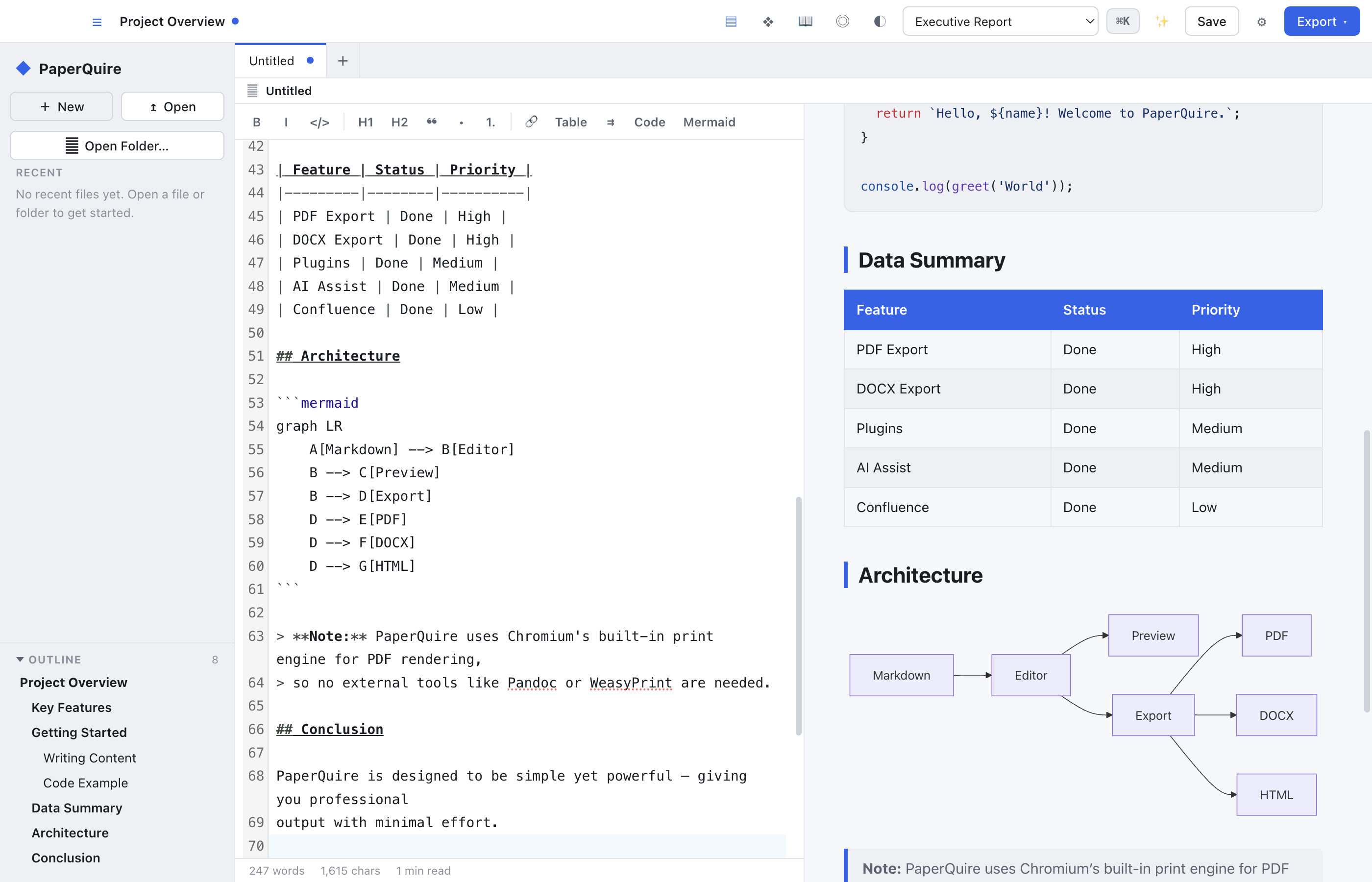
PaperQuire uses a split-pane editor: Markdown on the left, live preview on the right. The editor is built on CodeMirror 6 and provides syntax highlighting, line numbers, and smart indentation out of the box. As you type Markdown, the preview pane updates in real time so you always see exactly how your document will look.
The split can be resized by dragging the divider between the two panes. You can also collapse either pane to work in a focused writing mode or a full-screen preview. Scrolling is synchronized between the editor and the preview so the content you are editing is always visible on both sides.
Toolbar
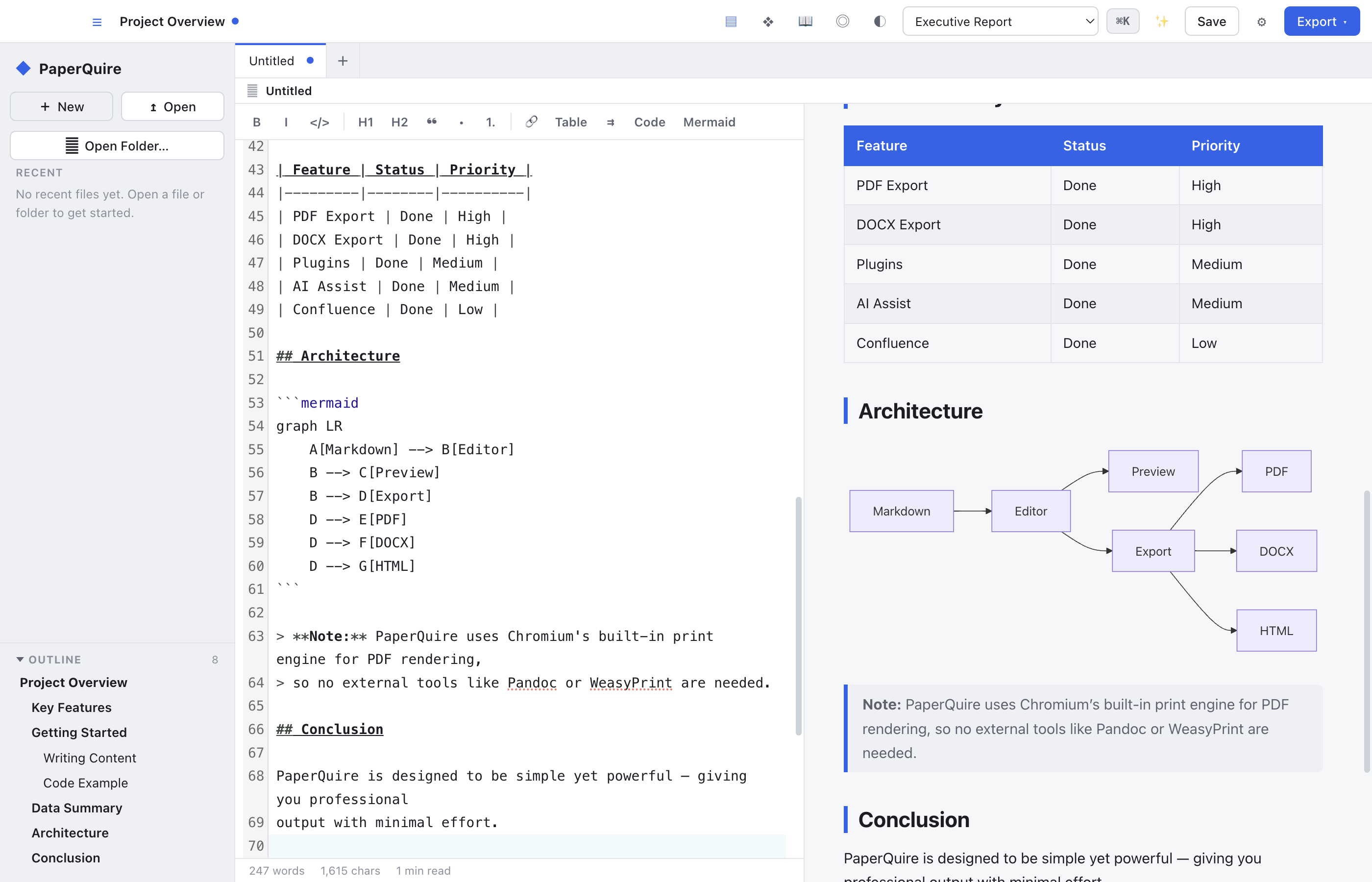
The toolbar at the top of the editor provides quick access to common formatting actions. Available buttons include bold, italic, headings (H1 through H4), bullet lists, numbered lists, links, images, code blocks, and tables.
Each button inserts the corresponding Markdown syntax at the current cursor position. If you have text selected, formatting buttons such as bold and italic will wrap the selection with the appropriate markers. Keyboard shortcuts are shown in tooltips when you hover over each button. See Keyboard Shortcuts for a complete reference.
Customizing the Toolbar
The toolbar can be customized from Settings → Editor → Toolbar. You can reorder buttons, hide actions you rarely use, or add separators to group related functions together. Changes take effect immediately and are saved to your local preferences.
Slash Commands
Type / at the start of a line to open the command palette.
A floating menu appears with a searchable list of block-level elements you can insert.
Start typing to filter the list, then press Enter or click to insert.
Available slash commands include:
/heading— Insert a heading (H1 through H4)/bullet— Start a bullet list/numbered— Start a numbered list/task— Insert a task list with checkboxes/table— Insert a table with configurable rows and columns/code— Insert a fenced code block with language selector/hr— Insert a horizontal rule/callout— Insert a callout block (info, warning, tip, or danger)/image— Insert an image from your local files/link— Insert a hyperlink/date— Insert today's date in your preferred format
Status Bar
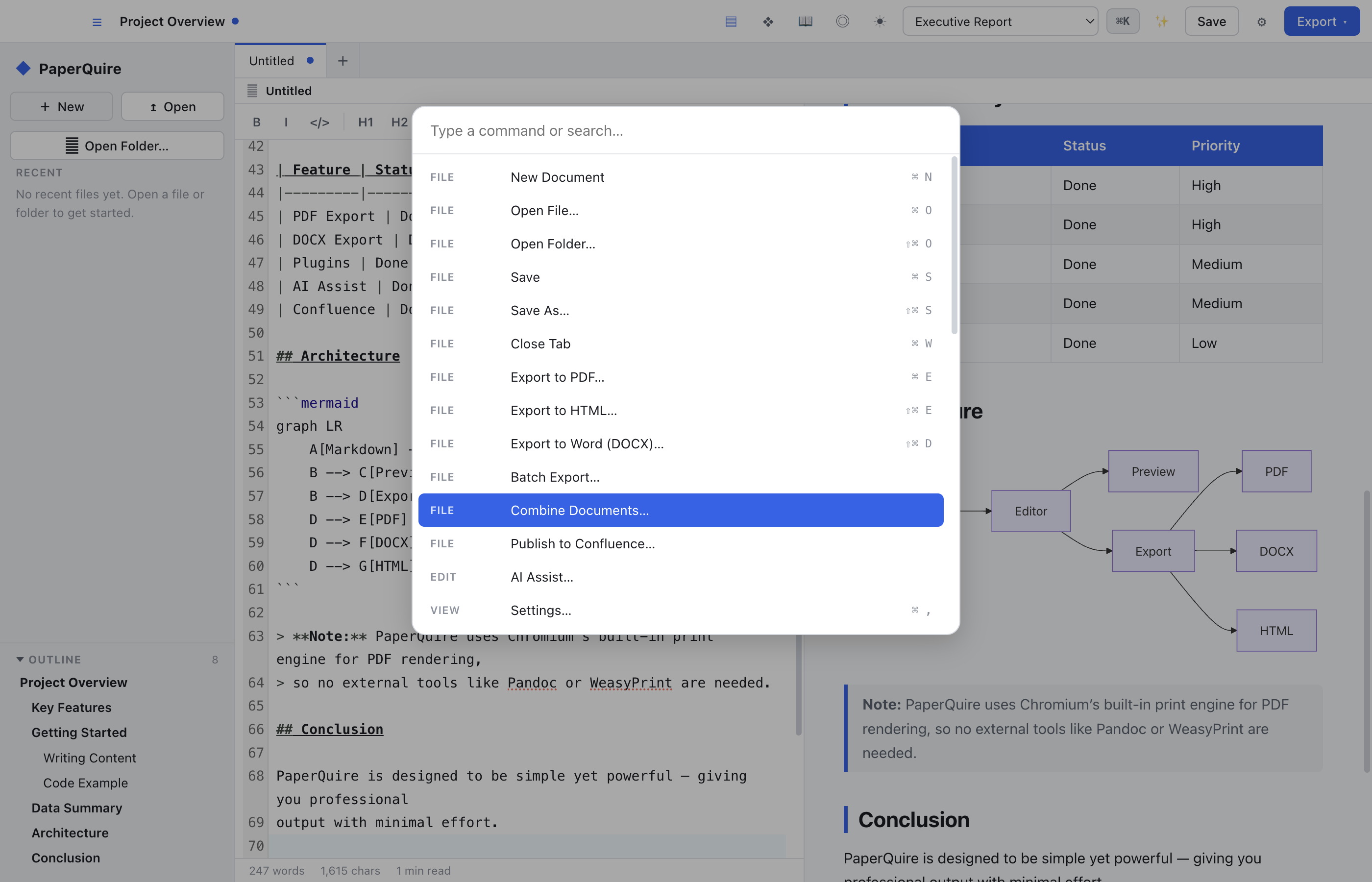
The bottom status bar displays useful information about your document at a glance. From left to right you will see:
- Word count — total number of words in the document
- Character count — total characters including spaces
- Reading time — estimated time to read, based on an average of 200 words per minute
- Cursor position — current line and column number
- Encoding — the document's character encoding (typically UTF-8)
Click the word count to open a detailed statistics panel that shows paragraph count, sentence count, average sentence length, and a readability score.
Sidebar
The left sidebar serves as your document library. All of your Markdown files are listed here, organized into folders you create. You can drag and drop documents to reorder them or move them between folders.
Creating and Organizing Documents
Click the + button at the top of the sidebar to create a new document or a new folder. Right-click any item for a context menu with options to rename, duplicate, move, or delete. Use the search box at the top of the sidebar to filter documents by name or content.
Themes
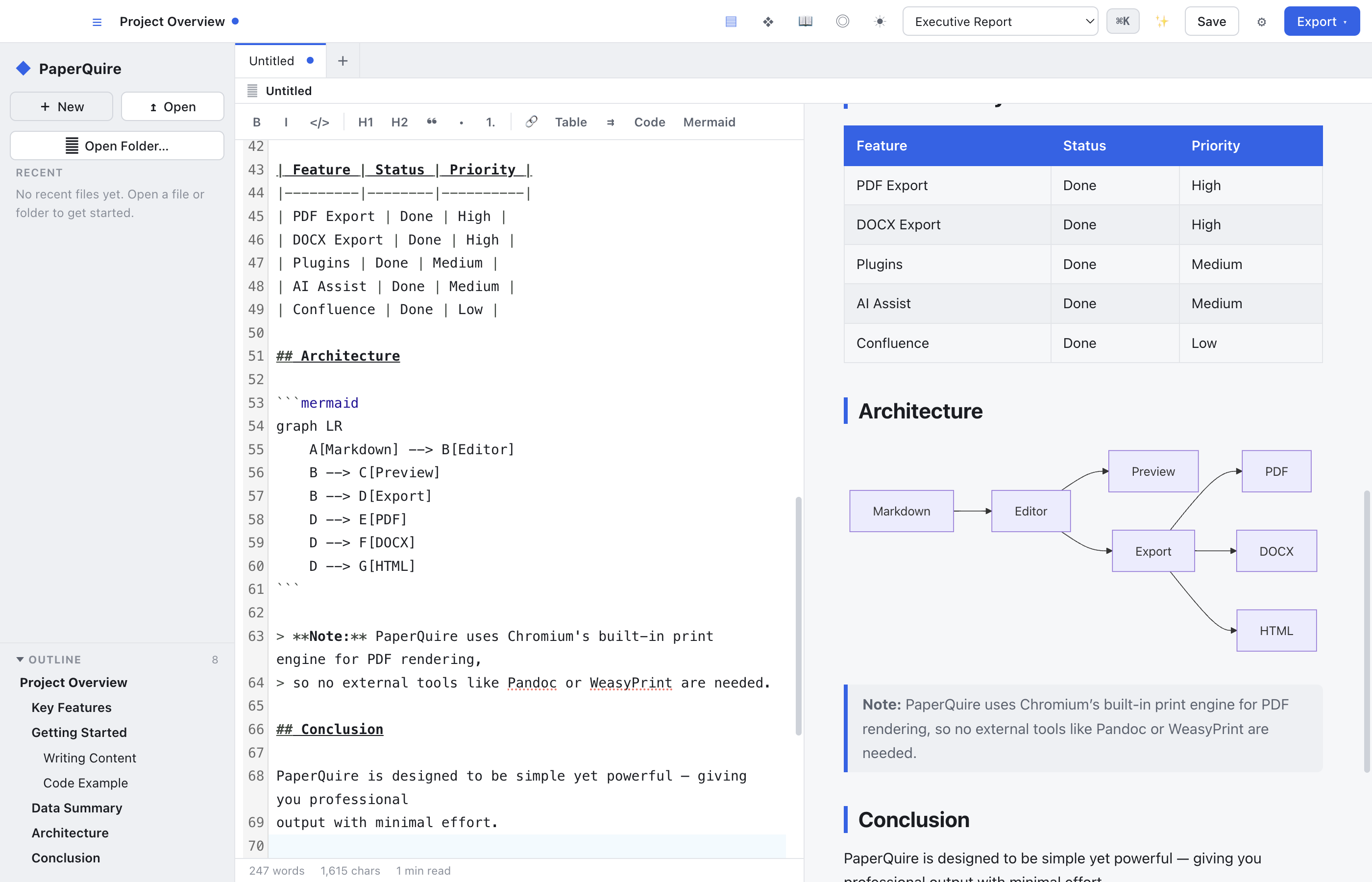
PaperQuire supports dark and light editor themes. Switch between them from Settings → Appearance or use the keyboard shortcut Cmd+Shift+T (macOS) or Ctrl+Shift+T (Windows/Linux).
The editor theme controls only the appearance of the writing environment. It is entirely independent of your export template, which determines how your PDF output looks. You can write in dark mode and still produce a light, branded PDF with no extra configuration.