Live Preview
How Preview Works
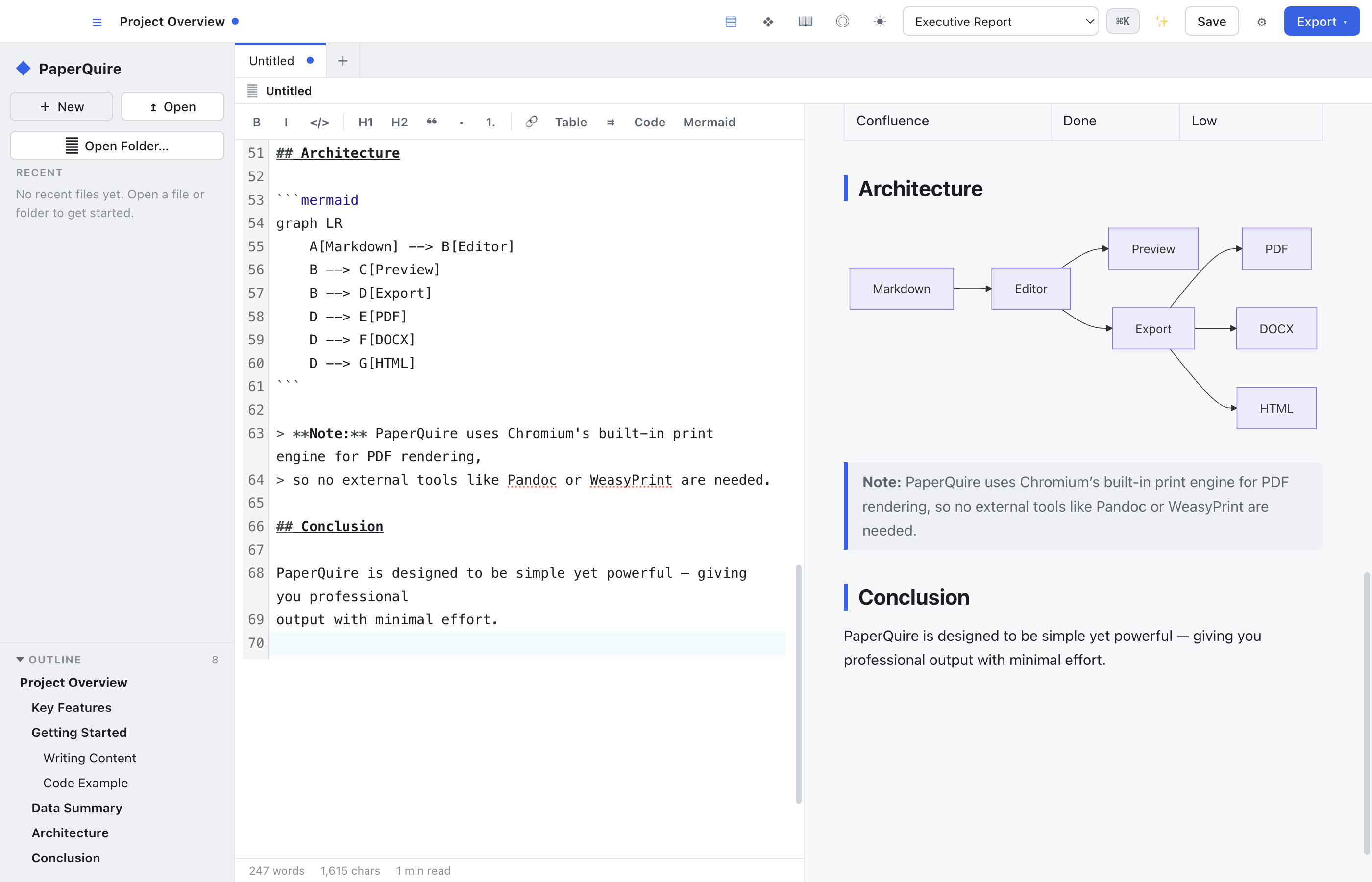
The right pane displays a live-rendered preview of your Markdown. It updates as you type with minimal delay, so you can see the effect of your edits immediately.
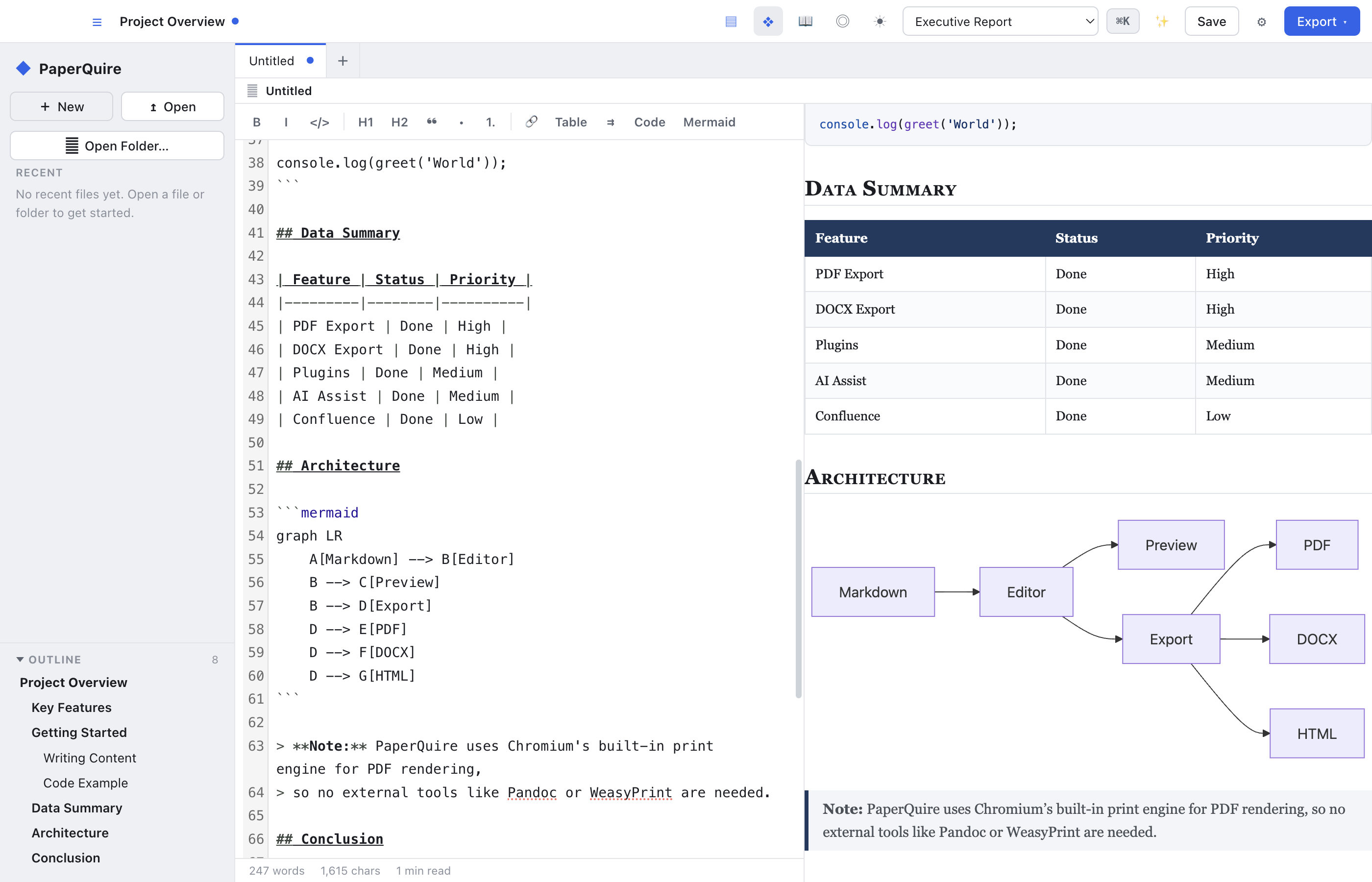
The preview applies your currently selected template styles. What you see in the preview closely matches the final exported document, giving you an accurate representation without needing to generate a PDF each time.
Scroll Sync
Editor and preview scroll positions are synchronized. As you scroll in the editor, the preview follows along to keep the corresponding content in view.
If you prefer to scroll each pane independently, you can toggle scroll sync off in Settings → Editor.
Template Preview
The preview renders using the active template's CSS. Switch templates in Document Setup to see your content reformatted instantly -- no need to re-export.
Preview Controls
Resize the editor/preview split by dragging the divider between the two panes. You can adjust the ratio to give more space to whichever pane you need.
Keyboard shortcuts
- Cmd/Ctrl+Shift+P -- Toggle the preview pane on or off.
Menu options
- View → Preview Only -- Hides the editor and shows just the rendered output, useful for reviewing the final layout.
Mermaid Diagrams
Mermaid diagram code blocks are rendered as interactive diagrams directly in the preview. Wrap your diagram source in a ```mermaid fenced code block, and PaperQuire will render it automatically.
Supported diagram types include:
- Flowcharts
- Sequence diagrams
- Gantt charts
- Class diagrams
- State diagrams
- Pie charts