View Modes
PaperQuire offers several view modes so you can tailor the interface to your current task — whether you are actively writing, reviewing a finished document, or focused on a single section.
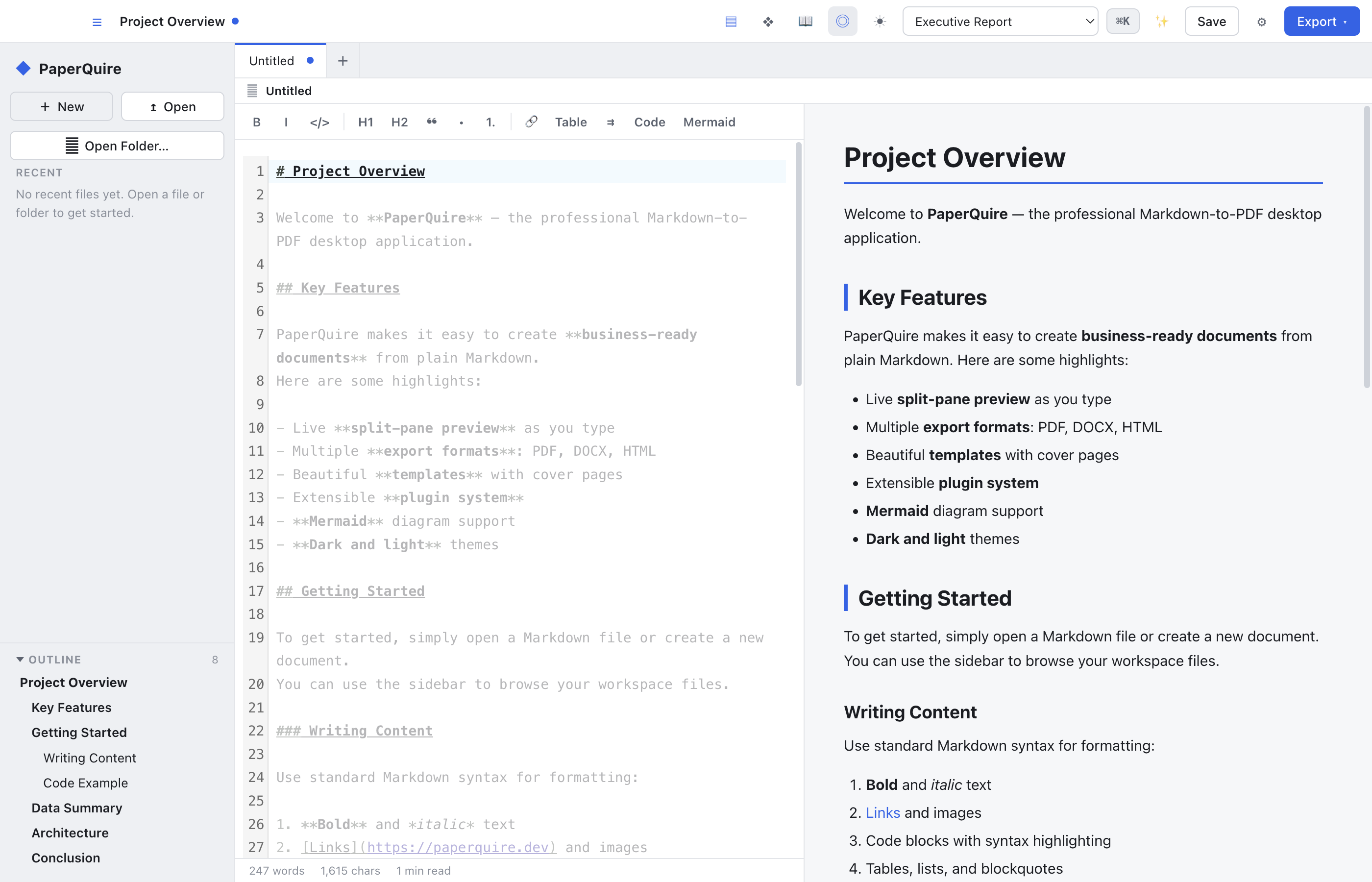
Default View
The default split-pane view places the editor on the left and the live preview on the right. This is the best mode for active writing where you want to see formatted output immediately. Changes you make in the editor are reflected in the preview in real time.
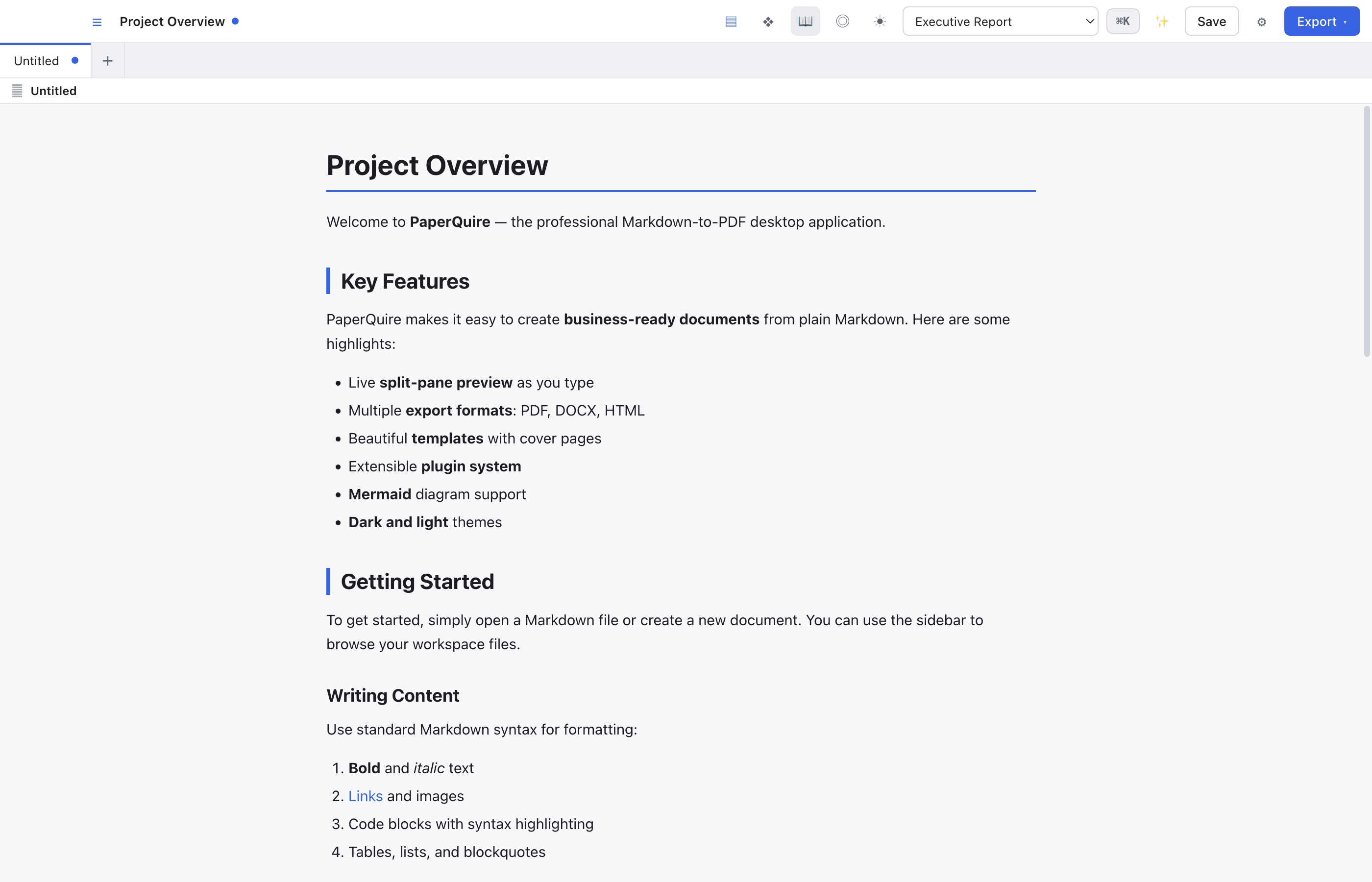
Reading Mode
A distraction-free reading experience that hides the editor and shows only the rendered preview, full-width. This is ideal for reviewing finished documents or sharing your screen with others.
How to activate
Open View → Reading Mode or press Cmd/Ctrl+Shift+R.
Focus Mode
Focus mode dims all content except the current paragraph or sentence you are editing. This helps you concentrate on one section at a time, reducing visual noise from the rest of the document.
How to activate
Open View → Focus Mode or press Cmd/Ctrl+Shift+F.
Editor Only
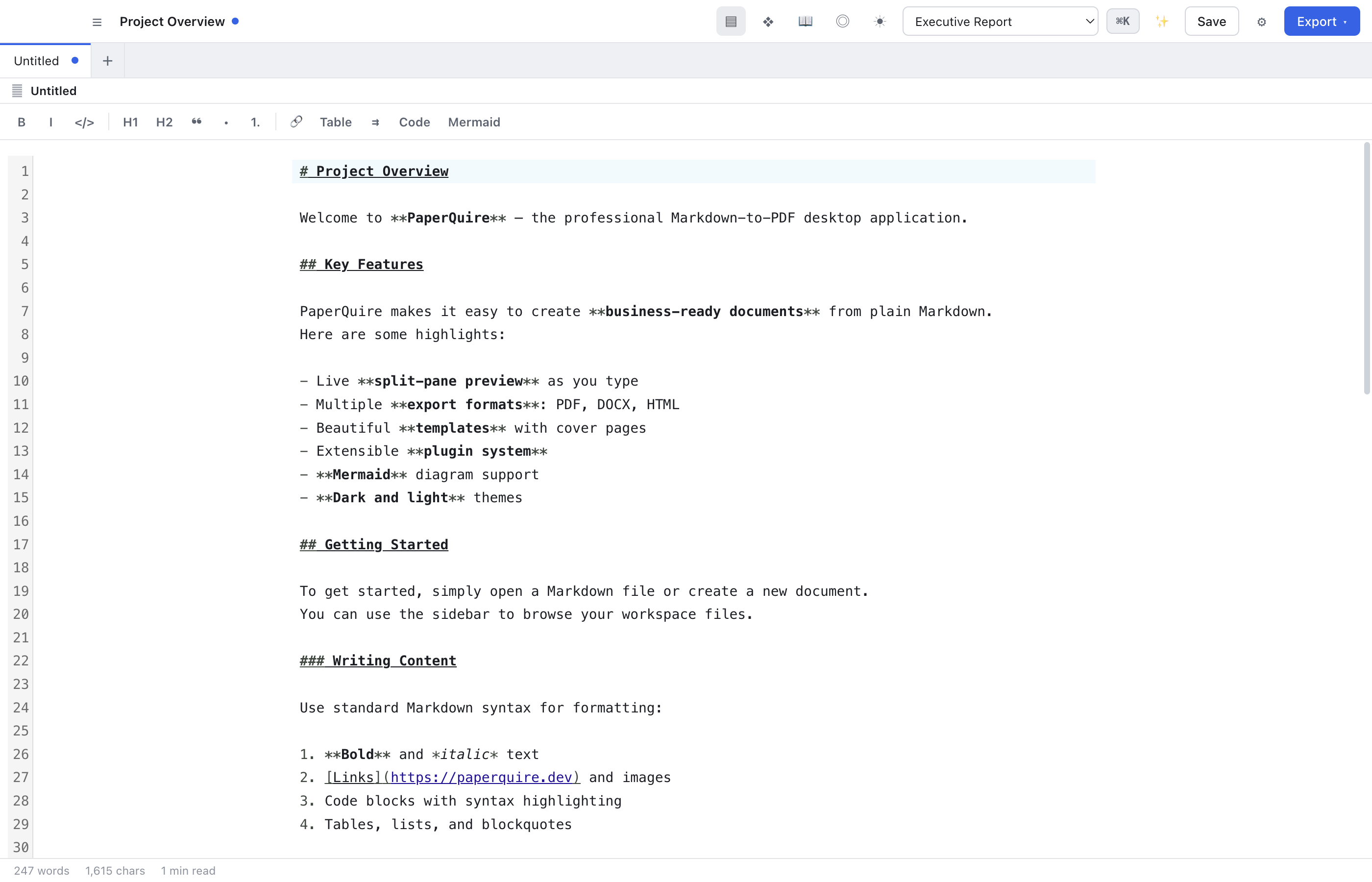
Editor-only mode hides the preview pane entirely, giving you the full window width for writing Markdown. This is useful on smaller screens or when you want maximum editing space without the distraction of a live preview.
How to activate
Open View → Editor Only or press Cmd/Ctrl+Shift+E.
Switching Between Modes
All view modes are accessible from the View menu, the command palette (Cmd/Ctrl+P), or their respective keyboard shortcuts. Your last used view mode is remembered per document, so each document can have its own preferred layout.