Markdown Reference
Basic Syntax
PaperQuire supports standard Markdown syntax for formatting text. The table below summarizes the most common elements.
| Element | Syntax | Result |
|---|---|---|
| Heading 1 | # Heading |
Top-level heading |
| Heading 2 | ## Heading |
Second-level heading |
| Heading 3 | ### Heading |
Third-level heading |
| Heading 4–6 | #### through ###### |
Deeper heading levels |
| Bold | **bold text** |
bold text |
| Italic | *italic text* |
italic text |
| Bold & Italic | ***bold italic*** |
bold italic |
| Strikethrough | ~~deleted text~~ |
|
| Link | [text](https://example.com) |
text |
| Image |  |
Embedded image |
| Blockquote | > quoted text |
Indented quote block |
| Horizontal Rule | --- |
Thematic break line |
Headings support levels 1 through 6, corresponding to # through ######. Use a single blank line before and after headings for best results.
Blockquotes can be nested by stacking > characters:
> First level
> > Nested blockquote
Lists
Markdown supports three kinds of lists: bullet (unordered), numbered (ordered), and task lists.
Bullet Lists
Use - or * followed by a space. Indent with two spaces for nested items.
- First item
- Second item
  - Nested item
  - Another nested item
- Third item
Numbered Lists
Start each line with a number and a period. The actual numbers do not need to be sequential — Markdown will auto-number them.
1. First step
2. Second step
3. Third step
   1. Sub-step A
   2. Sub-step B
Task Lists
Add [ ] for an unchecked item or [x] for a checked item after the list marker.
- [x] Write the introduction
- [x] Add screenshots
- [ ] Final review
- [ ] Publish
Code
Inline Code
Wrap text in single backticks to display it as inline code:
Use the `render()` function to generate output.Fenced Code Blocks
Use triple backticks (```) to create a code block. Add a language identifier after the opening backticks to enable syntax highlighting.
```javascript
function greet(name) {
  return `Hello, ${name}!`;
}
```
Supported Languages
PaperQuire supports syntax highlighting for many languages, including:
javascript |
python |
html |
css |
bash |
json |
yaml |
typescript |
java |
c |
cpp |
csharp |
ruby |
go |
rust |
sql |
php |
swift |
kotlin |
markdown |
Tables
Create tables using pipes (|) and hyphens (-). The second row defines column alignment.
| Name       | Role          | Status   |
|:-----------|:-------------:|---------:|
| Alice      | Developer     | Active   |
| Bob        | Designer      | Active   |
| Carol      | PM            | On leave |
Alignment options in the separator row:
| Syntax | Alignment |
|---|---|
:-- or :--- |
Left-aligned (default) |
:--: or :---: |
Center-aligned |
--: or ---: |
Right-aligned |
Tables auto-format in the preview pane. You do not need to align the pipes perfectly in your source — PaperQuire handles the formatting.
Callouts
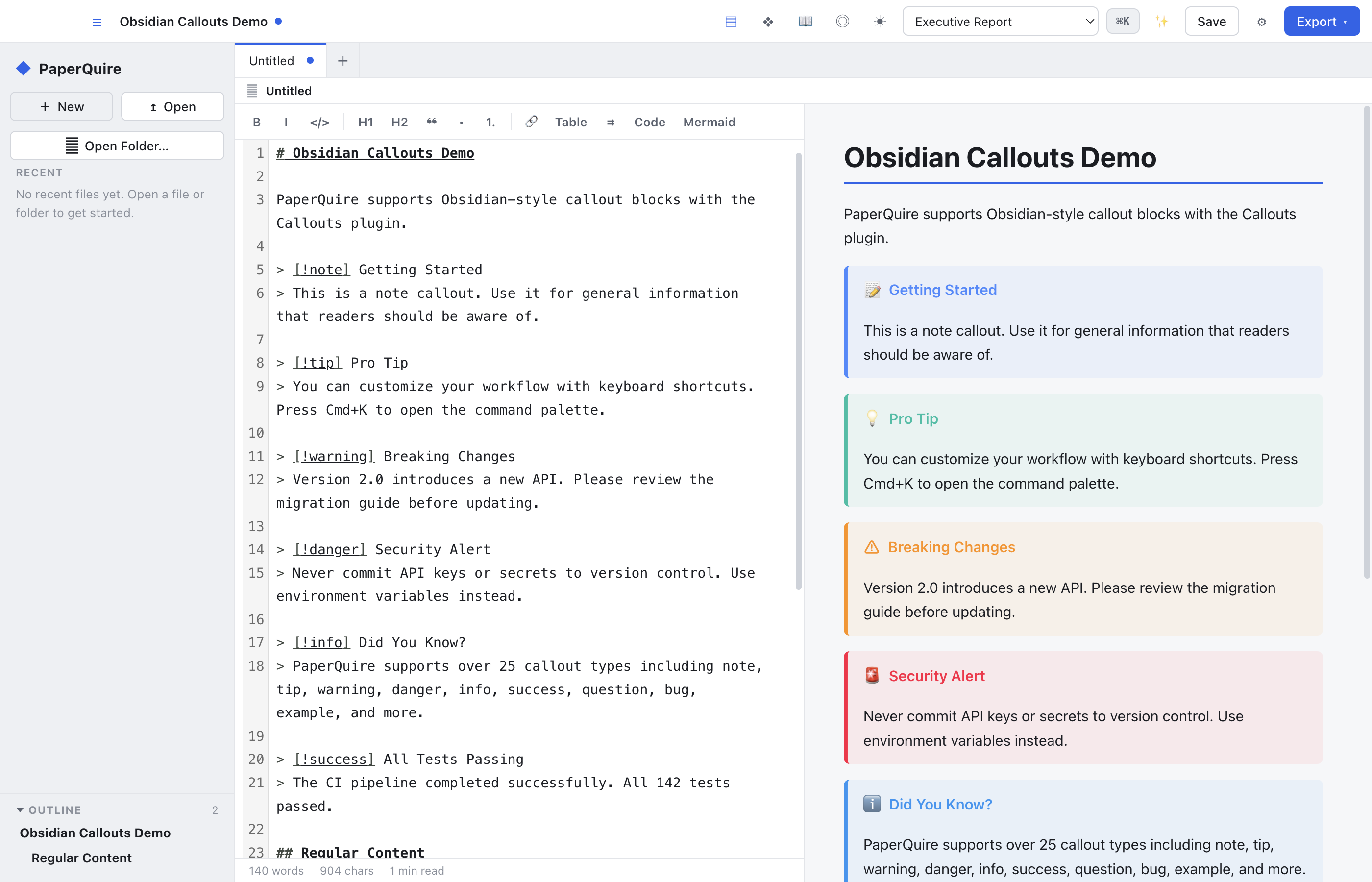
PaperQuire supports Obsidian-style callout blocks using the > [!type] syntax inside a blockquote. Callouts are useful for drawing attention to important information.
> [!note]
> This is a note callout. Use it for general information.

> [!tip]
> Helpful advice goes here.

> [!warning]
> Proceed with caution.

> [!danger]
> Critical information — do not ignore.
Supported callout types:
| Type | Purpose |
|---|---|
note | General information or remarks |
tip | Helpful advice or best practices |
warning | Potential issues or things to watch out for |
danger | Critical warnings or destructive actions |
info | Informational context |
example | Worked examples or demonstrations |
quote | Attributed quotations |
Mermaid Diagrams
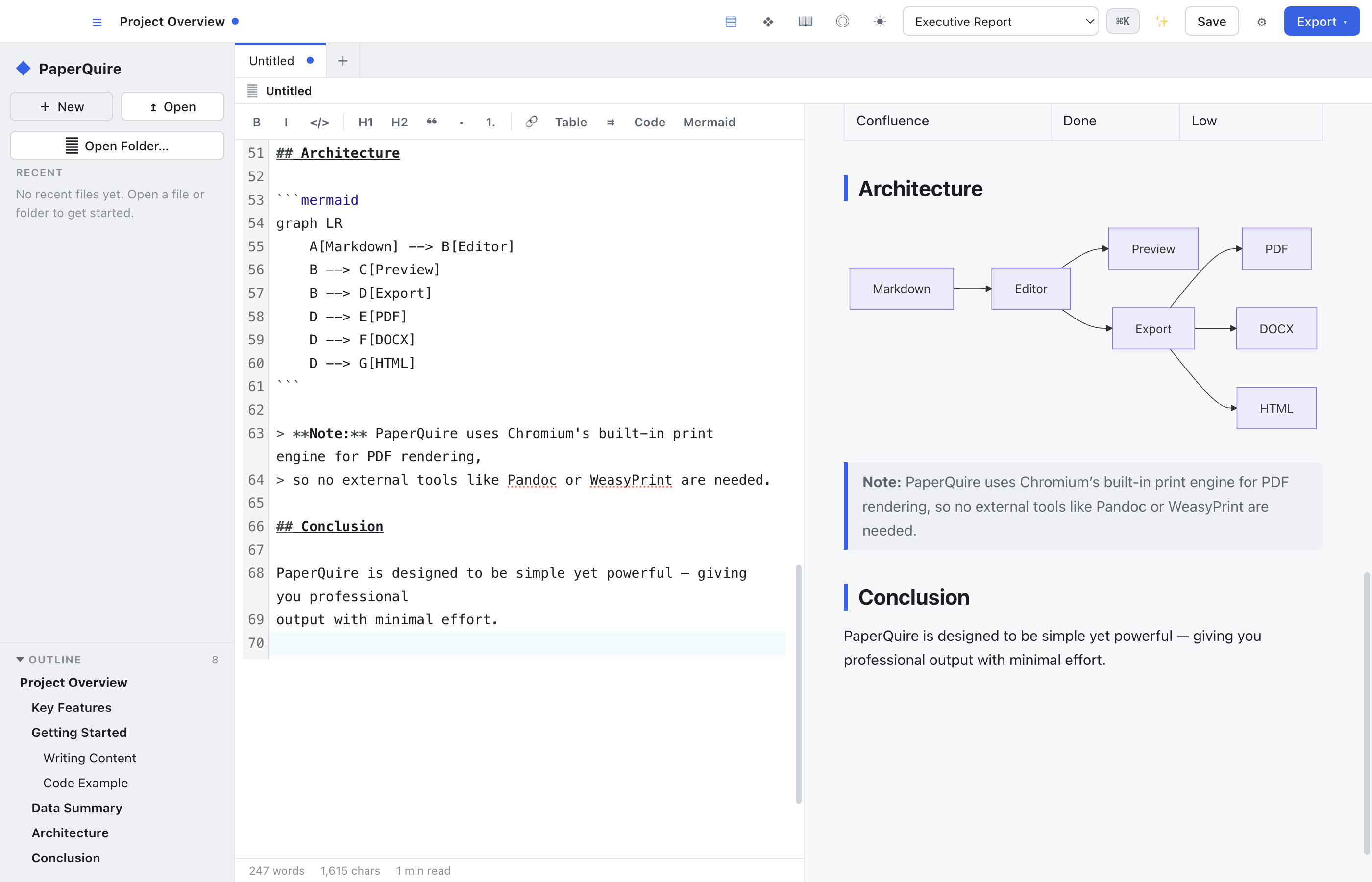
Embed diagrams directly in your Markdown using ```mermaid fenced code blocks. PaperQuire renders them as SVG graphics in the preview and in exported PDFs.
Flowchart Example
```mermaid
graph TD
    A[Start] --> B{Decision}
    B --> |Yes| C[Do something]
    B --> |No| D[Do something else]
    C --> E[End]
    D --> E
```
Supported Diagram Types
- Flowcharts —
graph TDorgraph LR - Sequence diagrams —
sequenceDiagram - Gantt charts —
gantt - Pie charts —
pie - Class diagrams —
classDiagram - State diagrams —
stateDiagram-v2 - ER diagrams —
erDiagram
Front Matter
Add YAML front matter between --- delimiters at the very top of your document to set metadata. Front matter must be the first thing in the file with no blank lines before it.
---
title: Quarterly Report
author: Jane Smith
date: 2026-06-22
template: report
---

# Quarterly Report

Document content starts here...
Supported Fields
| Field | Description |
|---|---|
title | Document title, used on the cover page and in PDF metadata |
author | Author name, displayed on the cover page |
date | Document date, displayed on the cover page |
template | Template name to apply for styling |
| Custom keys | Any additional key-value pairs for use as variables |
Variables
Define variables in the front matter and reference them anywhere in your document using double curly braces: {{variable}}. This is useful for values that appear in multiple places, such as project names, version numbers, or dates.
---
title: Release Notes
project: PaperQuire
version: 2.4.0
release_date: 2026-06-22
---

# {{project}} v{{version}}

Released on {{release_date}}.

Welcome to **{{project}}** version {{version}}. This release
includes the following changes...
Variables are replaced at render time. If a variable is referenced but not defined in the front matter, the placeholder text is left as-is in the output.
Emoji Shortcodes
Type an emoji shortcode between colons to insert an emoji character. PaperQuire supports standard GitHub-style emoji shortcodes.
:wave: Hello!
:white_check_mark: Task complete
:warning: Be careful
:rocket: Launching soon
:bulb: Here's an idea
Common Shortcodes
| Shortcode | Emoji | Shortcode | Emoji |
|---|---|---|---|
:smile: | 😄 | :thumbsup: | 👍 |
:wave: | 👋 | :heart: | ❤️ |
:rocket: | 🚀 | :star: | ⭐ |
:warning: | ⚠️ | :bulb: | 💡 |
:white_check_mark: | ✅ | :x: | ❌ |
:memo: | 📝 | :link: | 🔗 |
For a full list of supported shortcodes, refer to the GitHub Emoji Cheat Sheet.