PDF / DOCX / HTML Export
Export Overview
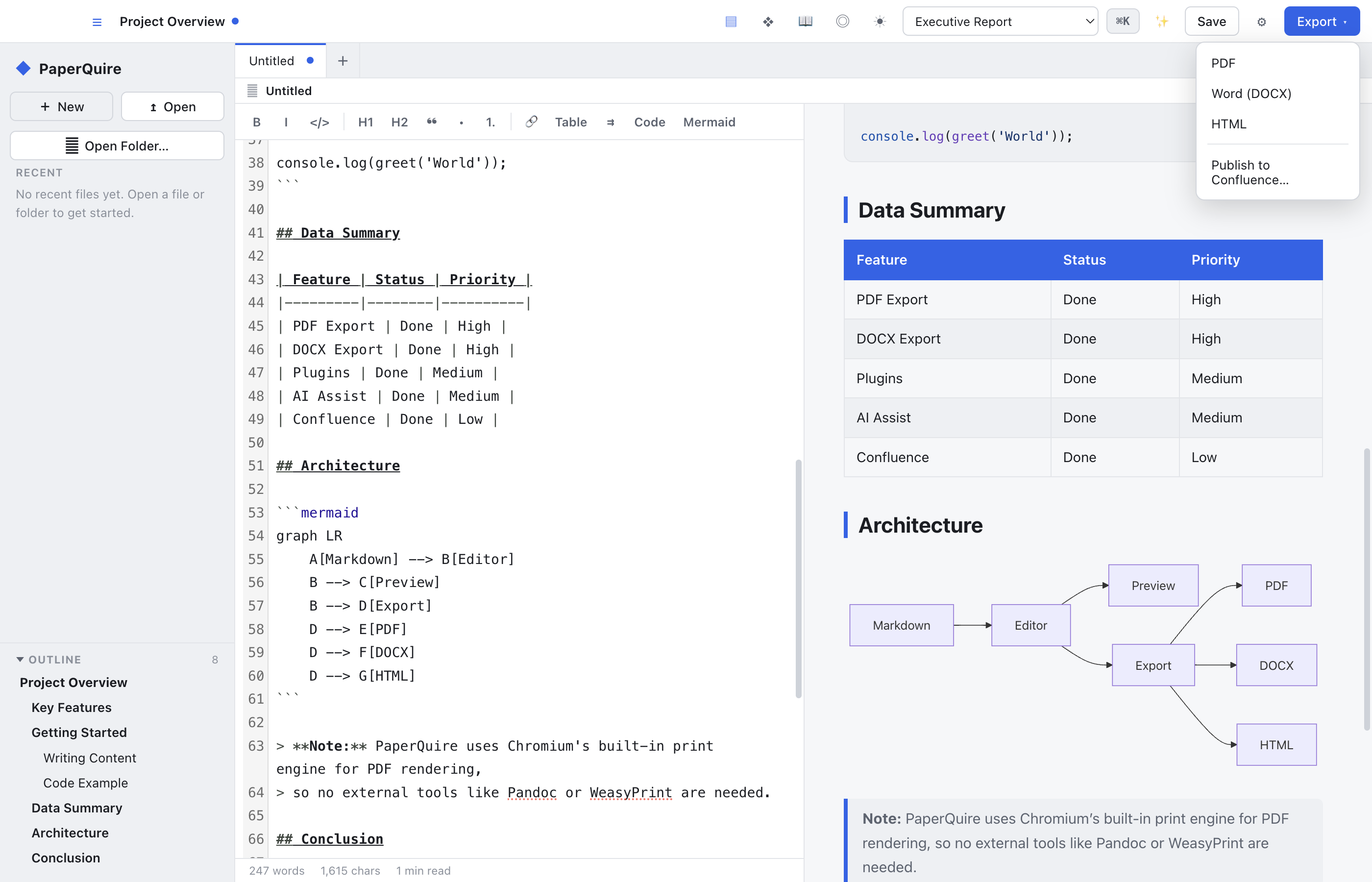
Export from the toolbar export button or Cmd/Ctrl+E. Three formats are available: PDF, DOCX, and HTML. Each applies your template and document setup settings, so the exported file matches what you see in the editor preview.
PDF Export
The primary export format. Generates a print-ready PDF with exact template styling, page numbers, headers/footers, cover page, and table of contents. PaperQuire uses a local rendering engine — no data leaves your machine. The output is high-fidelity, matching the editor preview pixel-for-pixel.
DOCX Export Pro
Exports to Microsoft Word format. Preserves headings, lists, tables, images, and basic styling. Useful for sharing with colleagues who use Word. Some advanced template features (custom headers/footers, multi-column layouts) may render differently in Word.
HTML Export Pro
Exports a self-contained HTML file with embedded CSS and images. Opens in any browser. Useful for web publishing or email distribution. All template styles are inlined, so the file looks correct without external dependencies.
Export Validation
Before exporting, PaperQuire runs validation checks: broken image references, missing front matter fields, oversized images, and accessibility warnings. Validation issues appear as warnings — you can still export, but fixing them improves output quality.
paperquire render — useful for scripting and CI pipelines.Export Settings
Configure default export format, output directory, filename pattern, whether to open the file after export, and PDF-specific options (compression level, PDF/A compliance) in Settings → Export. Many export-related options — cover page, table of contents, page breaks — are set per-document in Document Setup.